
Connect AXS, Google Drive, Dropbox to Smilecloud
Uploading files to Smilecloud is now even easier.
You can connect your AXS, Google Drive, and Dropbox accounts to Smilecloud, making it faster to import case files, photos, scans, PDFs, and other documentation without downloading them to your device first.
Once connected, your new source appears as an upload option inside Smilecloud, so you can select the files you need and bring them into your case in just a few clicks.
Easy, convenient, and designed to remove one more step from your workflow.
Connect your Google Drive to Smilecloud
To begin, log in to your Smilecloud account.
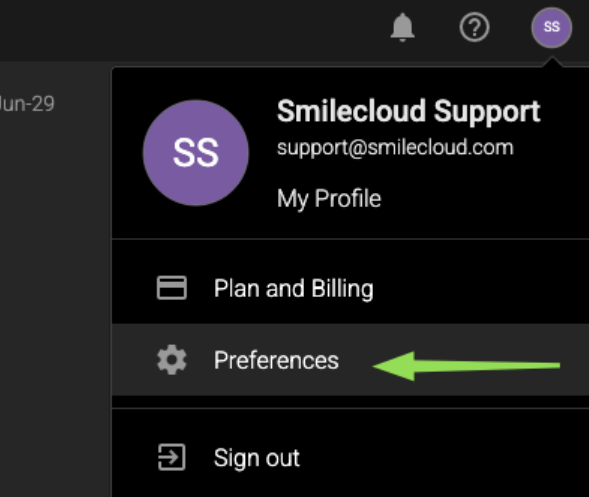
Click your avatar in the upper-right corner of the screen, then select Preferences from the dropdown menu.
From the left-side menu, click Integrations.

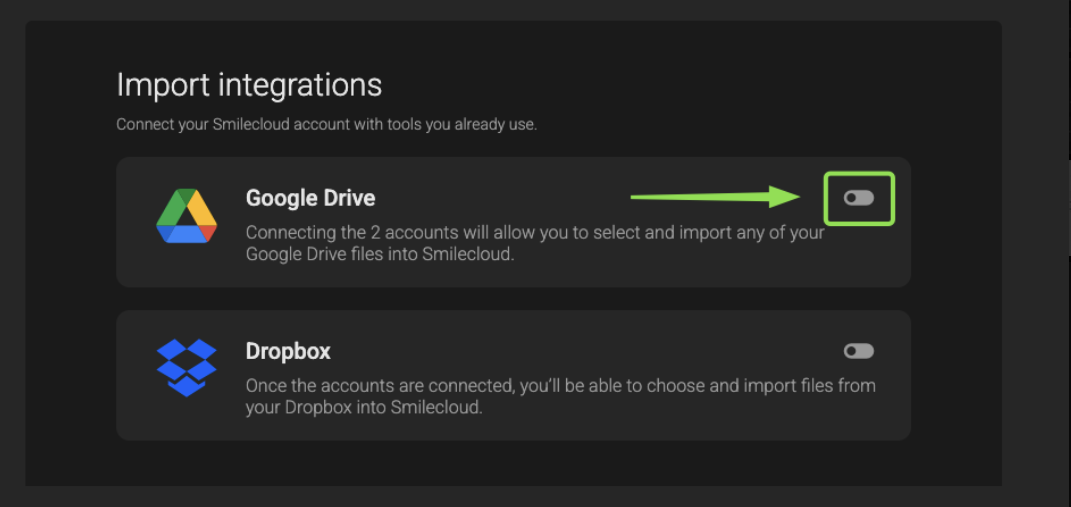
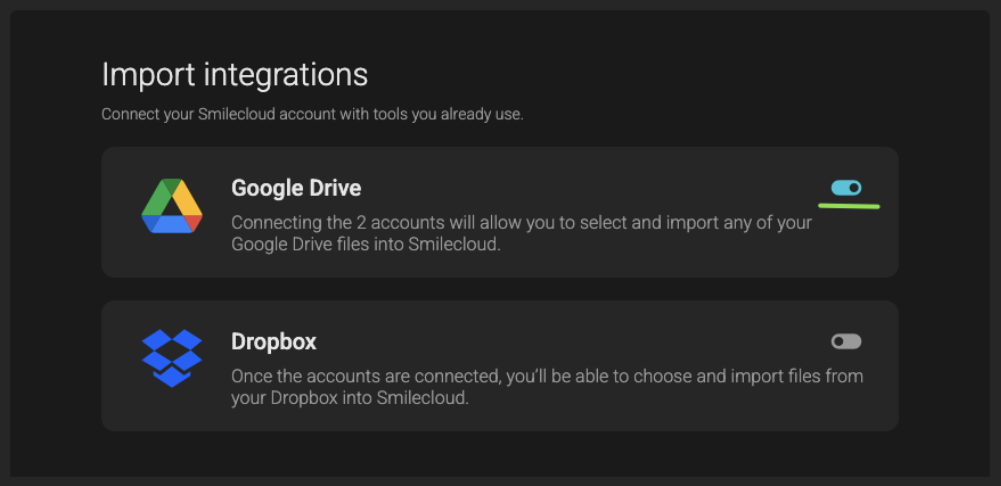
In the Import integrations section, you’ll see the available drive options.
Find Google Drive or Dropbox then click the toggle to enable the integration. You can connect one of them, or both, depending on the tools you use.
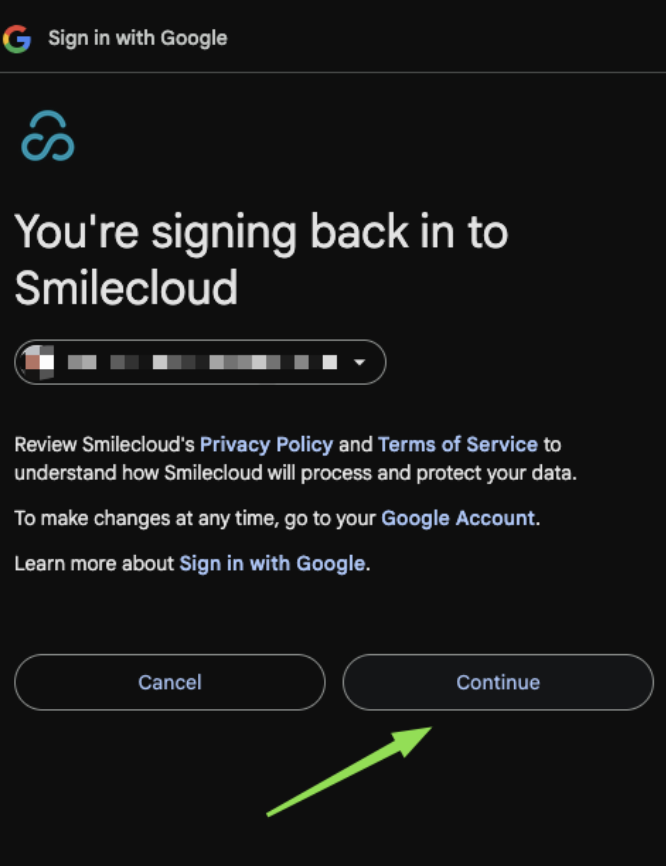
After enabling the toggle, you’ll be guided through the permission steps from Google or Microsoft. Click Continue, then review the access request and click Allow.
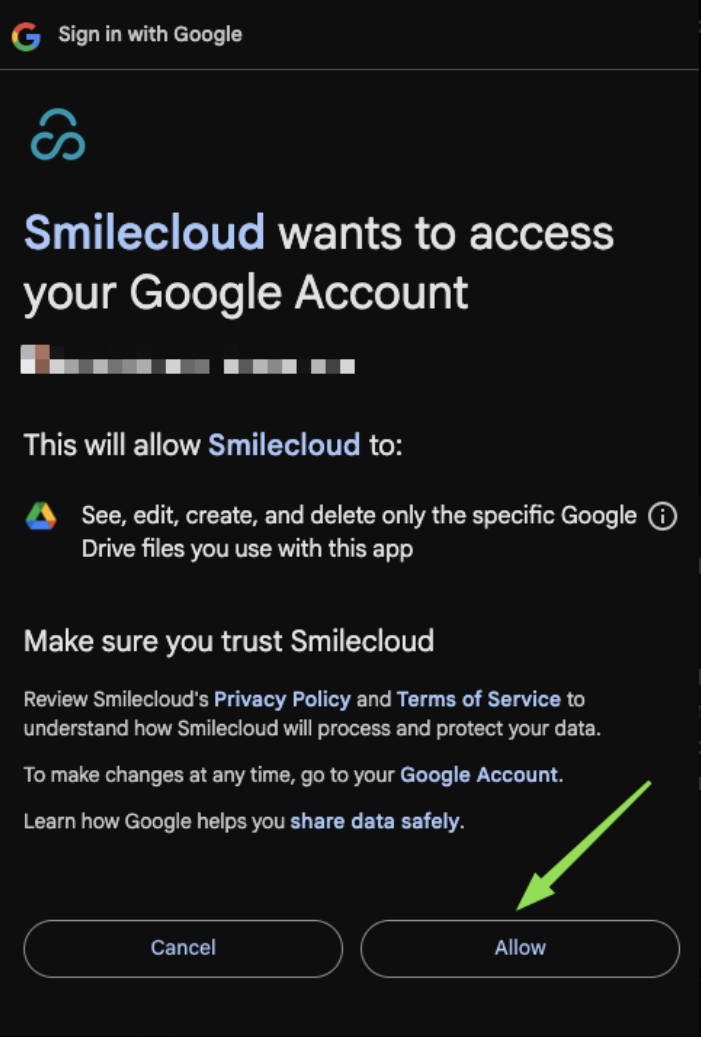
Once the toggle turns Smilecloud blue, your drive has been successfully connected.
Import files into a new case
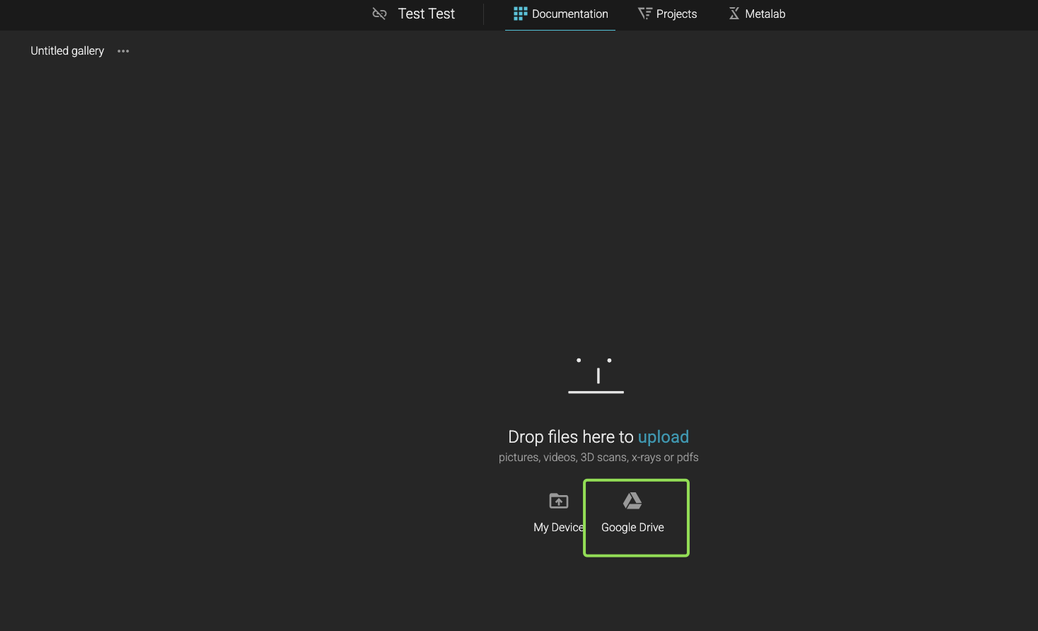
After your source is connected, you’ll now see your drive as an upload option next to your device upload option.
Click Google Drive or Dropbox or AXS, choose the files you want to import, then click Select.
Your files will be imported directly into your Smilecloud case.
Import files into an existing case
You can also import files from your drive into an existing gallery.
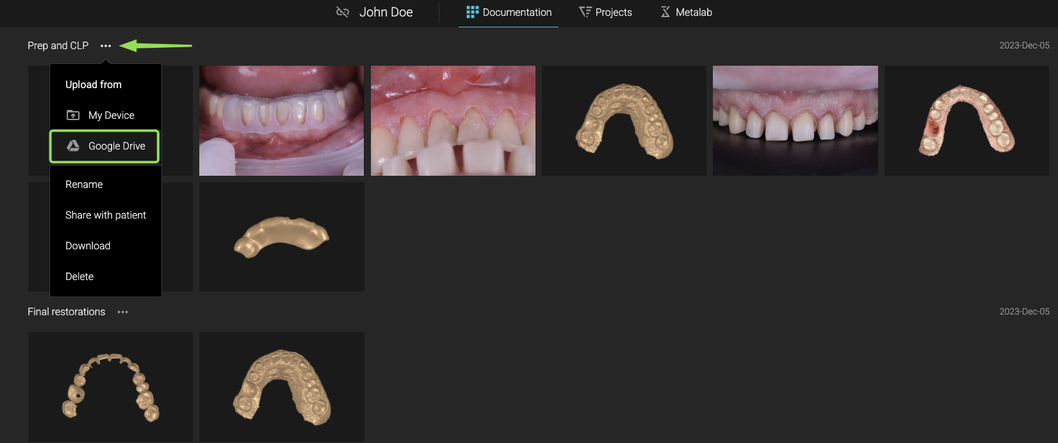
Open the case, go to Documentation, then click the three dots in the upper-left area of the gallery.
From the menu, select the drive you want to import from.
A file picker will open. Choose the files you want to bring into Smilecloud, then click Select.
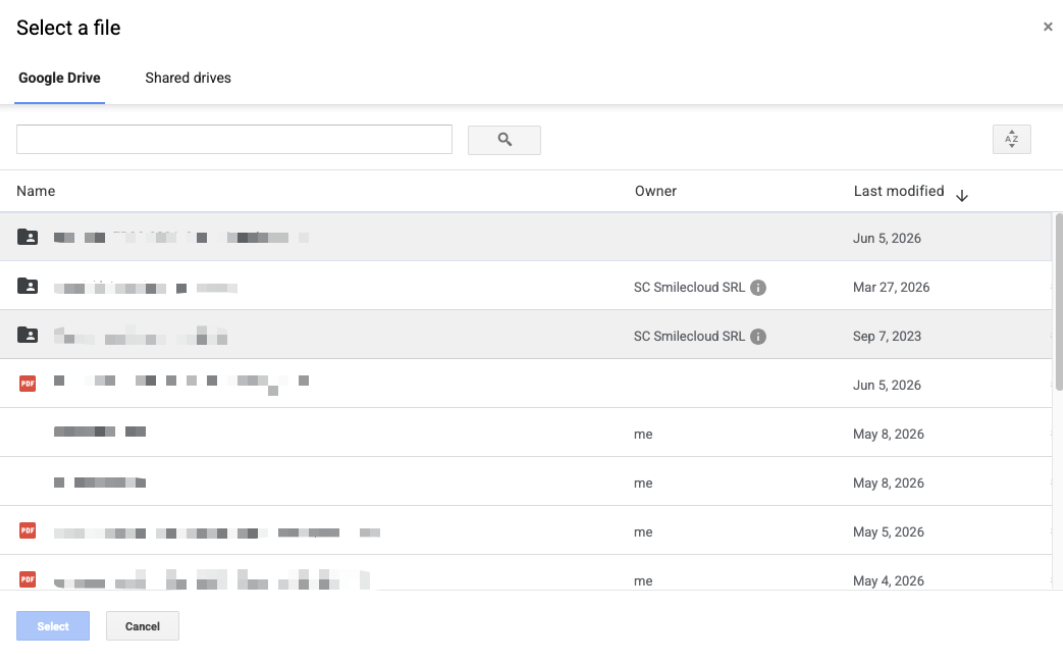
That’s it. Your selected files will be added to the case documentation.
A smoother way to bring files into Smilecloud
With Google Drive and OneDrive integrations, your files stay closer to your workflow.
No extra downloads.
No switching between folders.
No unnecessary steps.
Just connect your drive once, choose the files you need, and keep moving.