
Troubleshooting Signature Design Video Simulation
We’ve heard from you that, in some cases, the Signature Upper teeth may not appear in video simulations. While this can feel frustrating at first, the good news is that the solution is usually quick and easy.
Below is a simple troubleshooting guide to help you get everything back on track so you and your patients can fully enjoy the Signature Design experience.
To begin, we’ll assume you already have the following added to your stack:
- A portrait photo
- An Initial Upper scan
- A Signature Upper scan
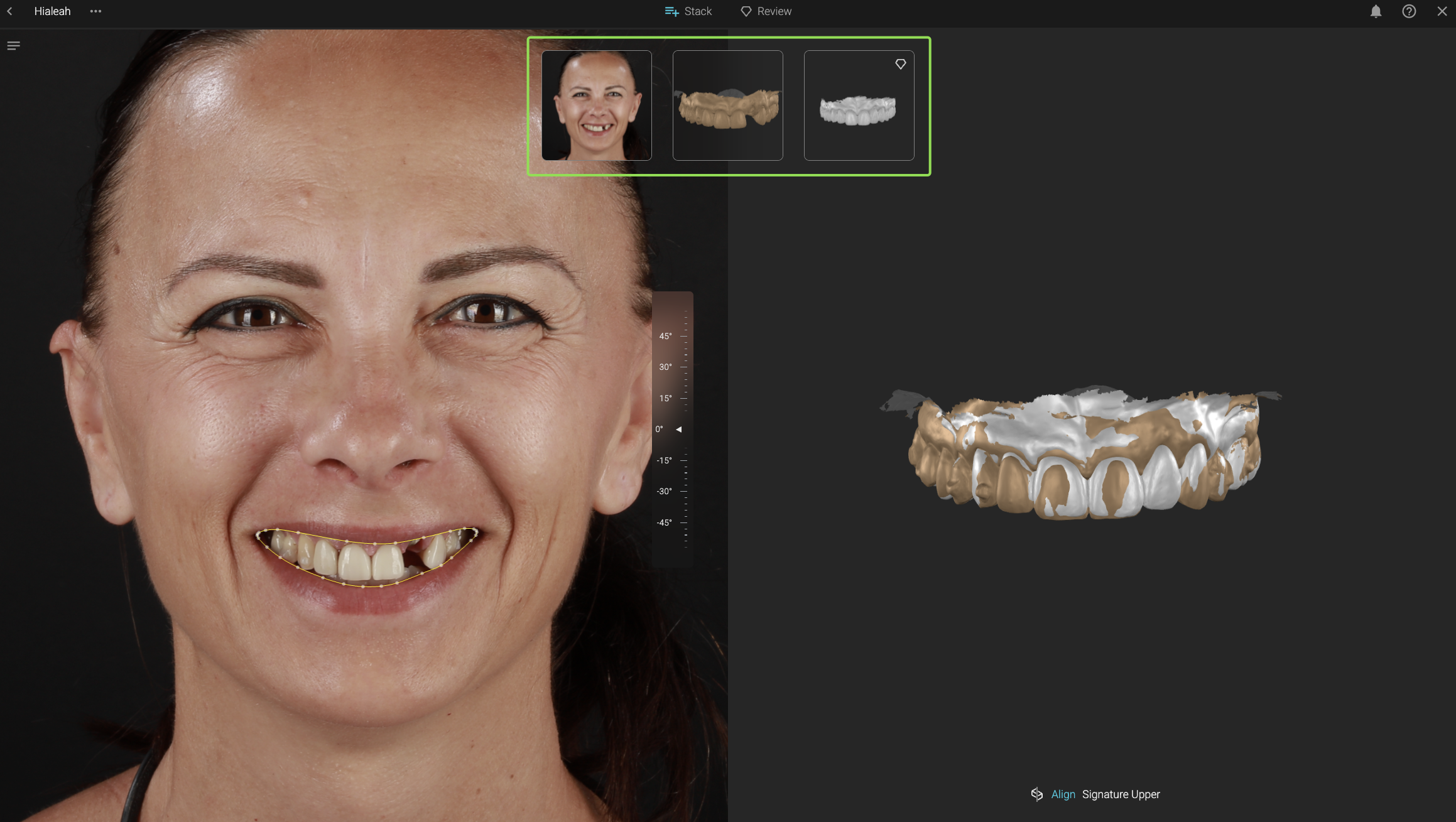
Sometimes, the Initial Upper scan may not be perfectly aligned with the Signature Upper scan. When that happens, you can easily correct the alignment by placing four anchor points between the two scans.
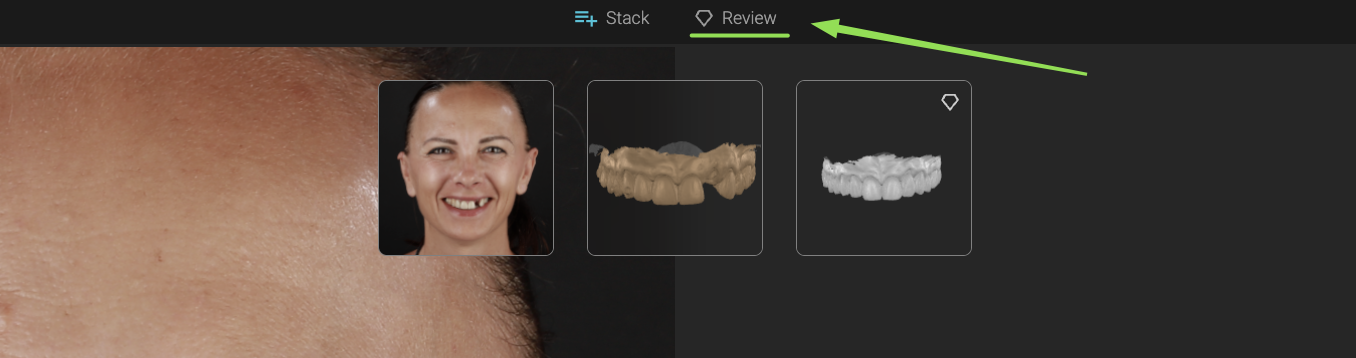
Once your scans are aligned and the lip contour is set, move into the Review stage to fine-tune the design and generate your video simulation.
Then, when you go to Review to see the simulation.
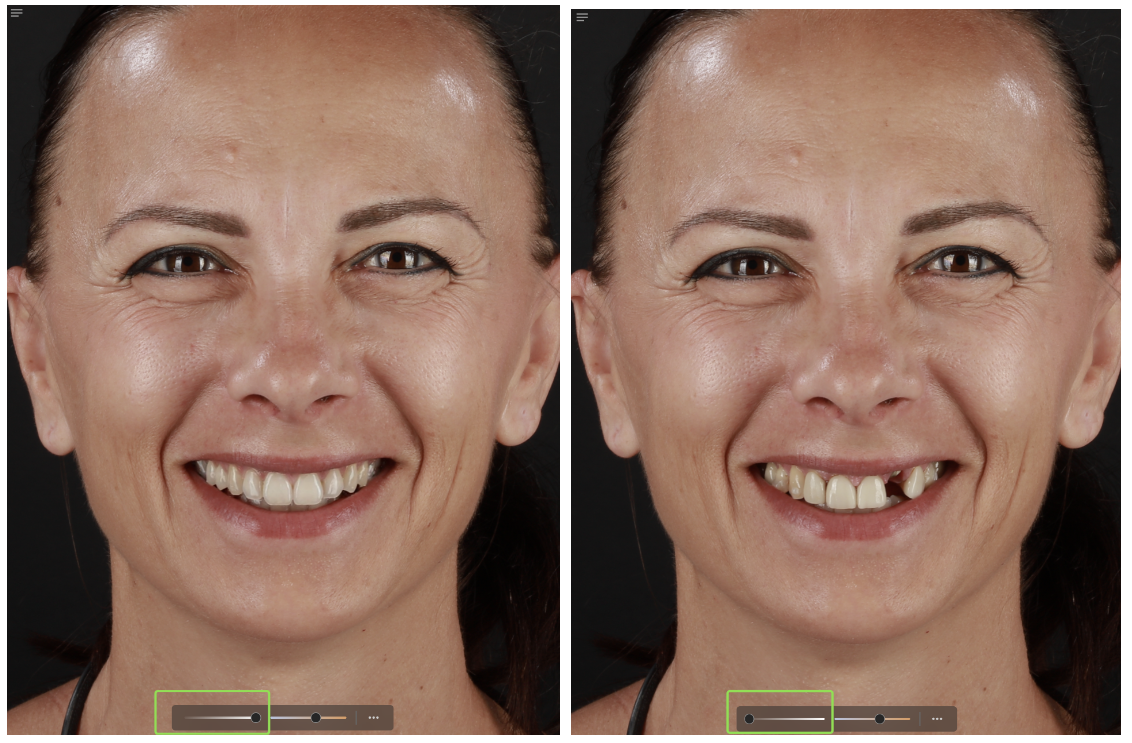
Here, you may want to experiment with the tooth opacity slider to compare the Initial smile with the Signature smile.
For example:
- Left side: Signature opacity set to maximum
- Right side: Signature opacity set to minimum
At this point, it’s easy to jump straight into generating the video simulation without resetting the opacity slider back to 100%.
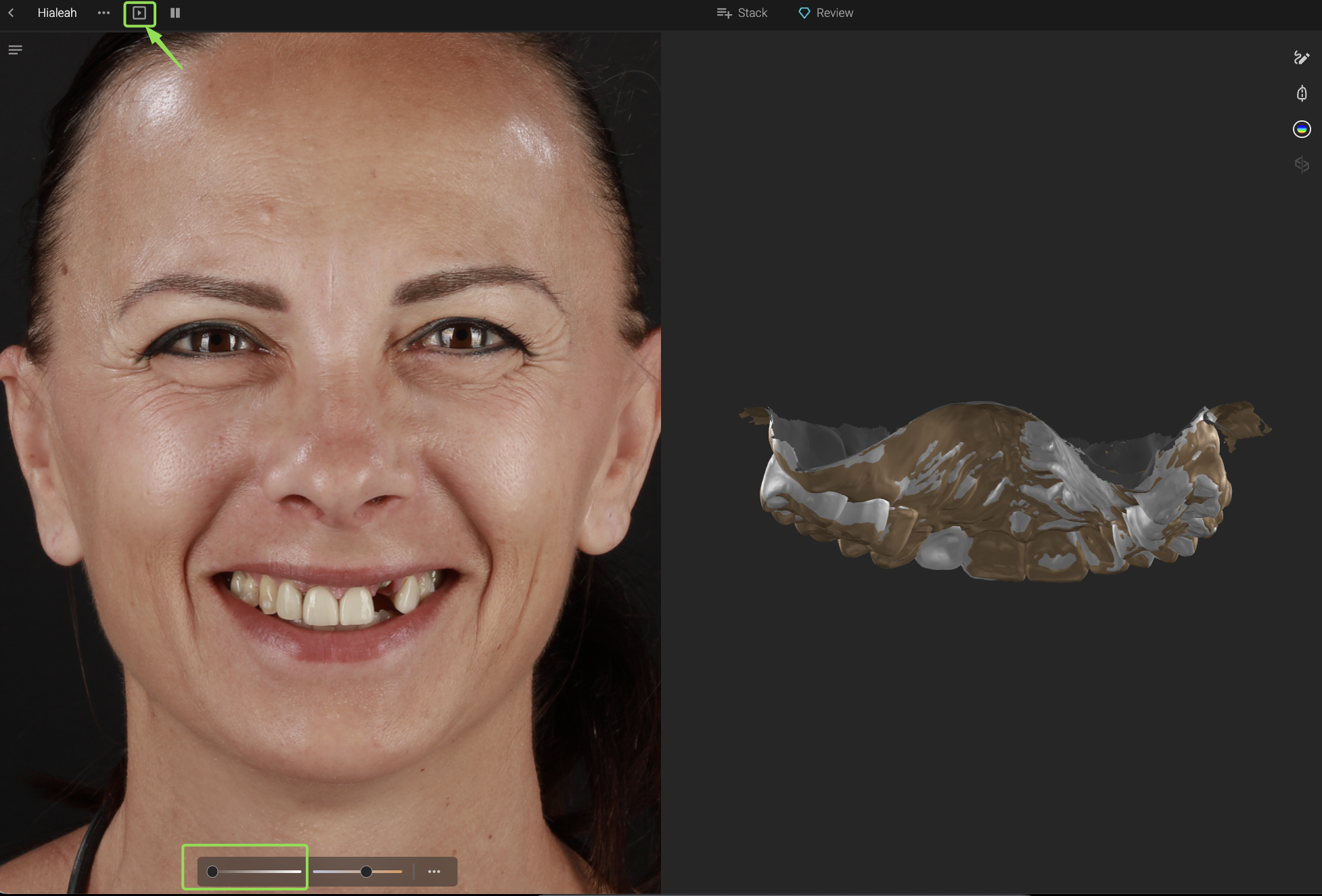
And when that happens, the final result may not look the way you expected.
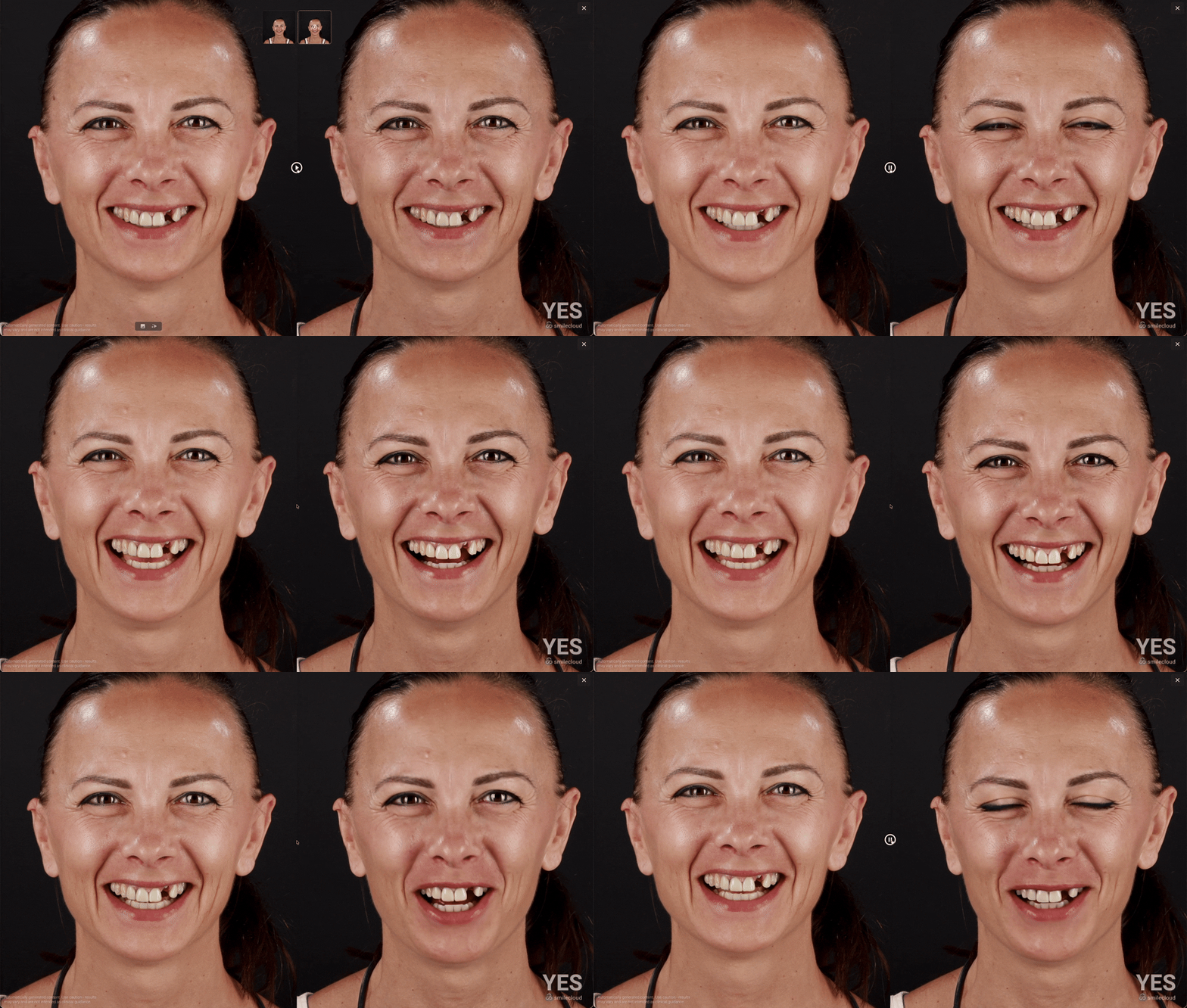
Fortunately, the fix is simple and only takes a few clicks. Here’s how:
- Close the video simulation view
- Return to the Review tab
- Set the opacity slider back to maximum
- Go back into the stack
- Make a very slight adjustment to the lip contour
- Click the Video Simulation button again
You’ll now notice a pop-up letting you know that the simulation is outdated and that a new simulation can be generated.
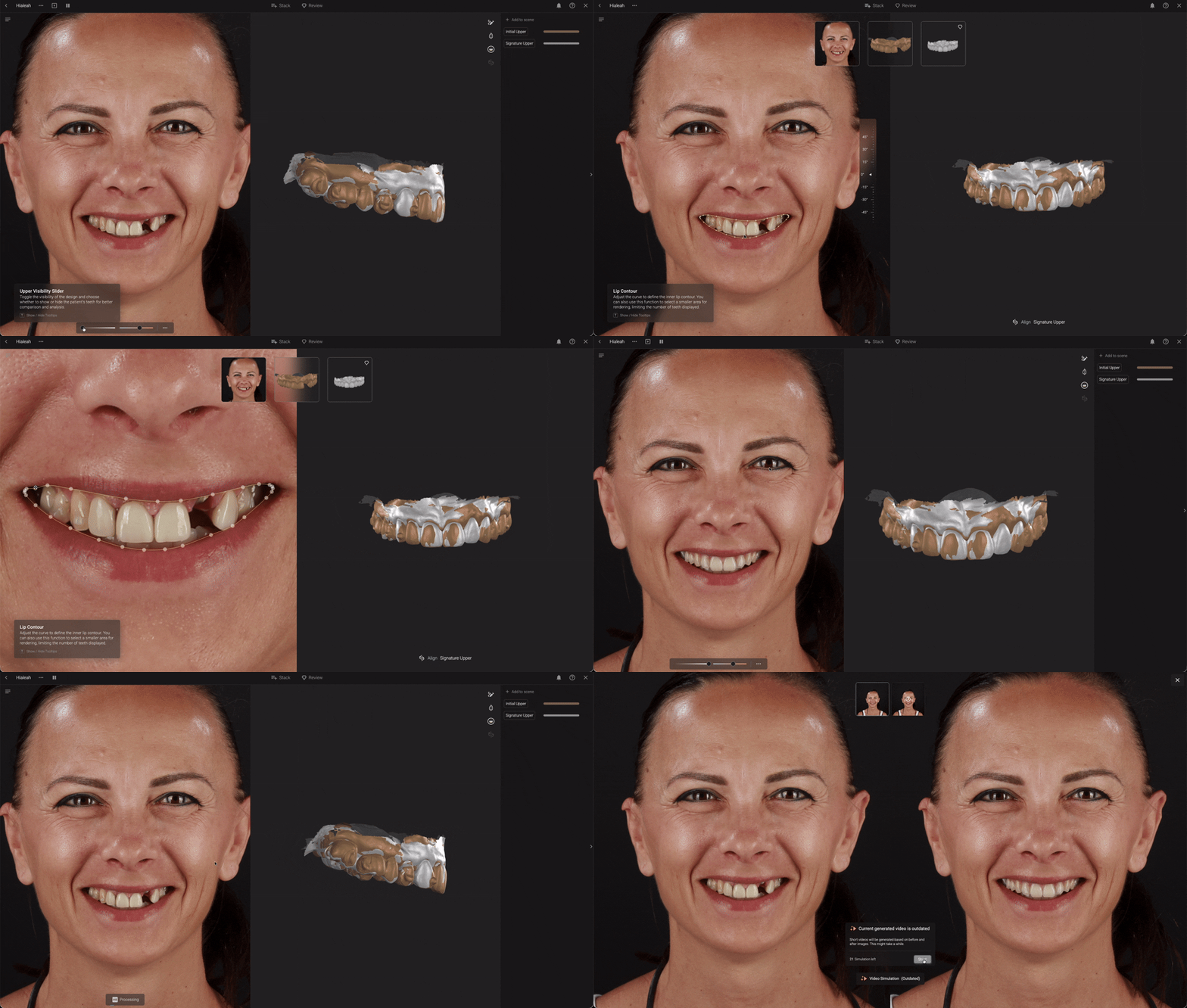
So why make a small adjustment to the lip contour?
In this situation, Signature did not generate a new video simulation because no actual design changes were detected between the original and updated versions. Since the AI recognized the two designs as identical, it considered the existing simulation up to date. Adjusting the opacity slider alone is not interpreted as a change to the Signature design itself.
By making a very small adjustment to the lip contour, the system recognizes the case as updated and automatically triggers the creation of a brand-new video simulation.
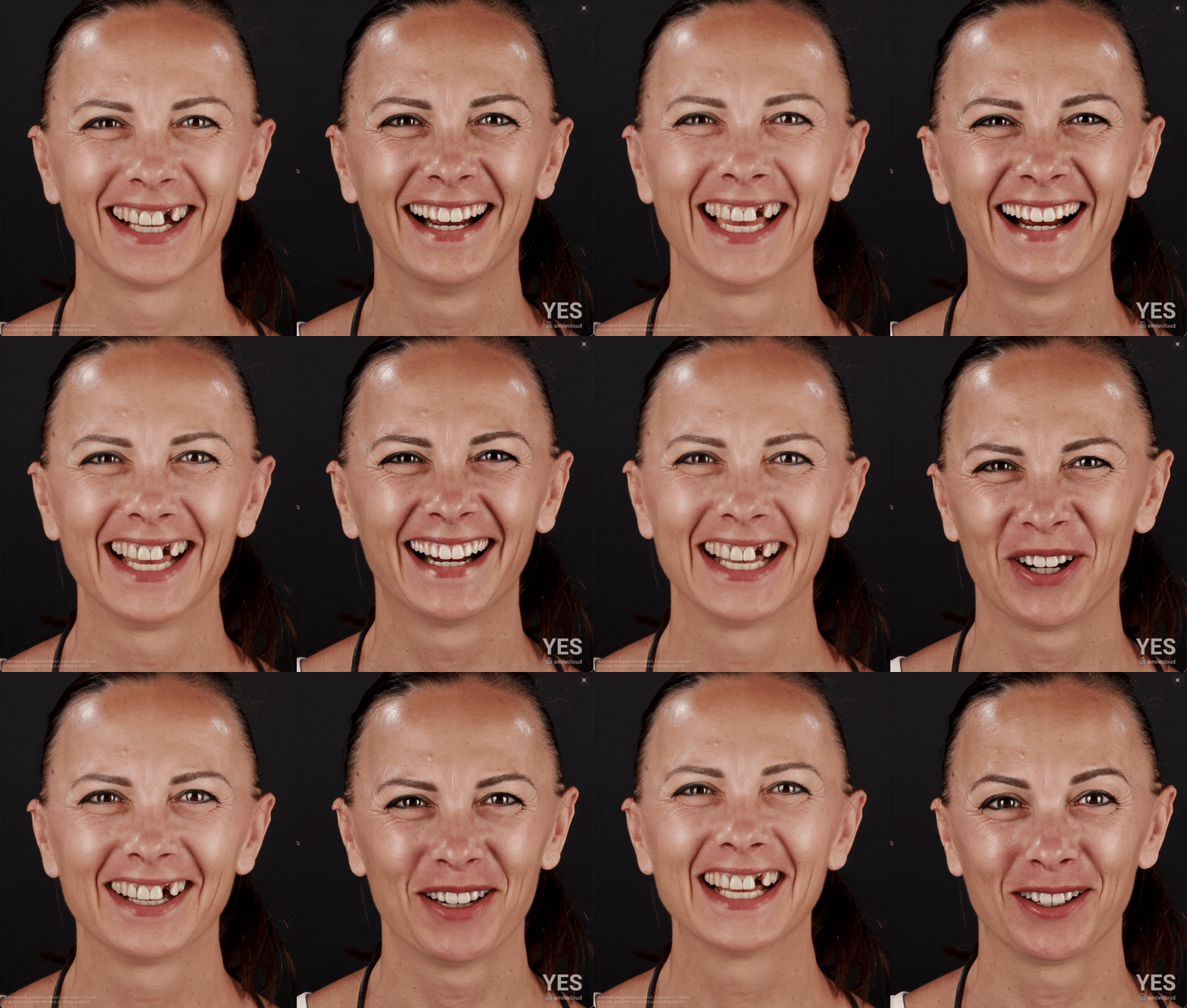
And that’s it.
In most cases, this quick refresh resolves the issue right away. If you still need help, our support team is always happy to assist and guide you through additional troubleshooting steps.