
Model Builder
Model Builder lets you create a model from an unsegmented intraoral scan, segmented Blueprint elements, or a scan combined with designed or aligned teeth. The right workflow depends on your starting files and what you want the model to include.
Build a model from an unsegmented scan:
Model Builder adds thickness and a base to your scan without changing its original surface. Complete any scan edits before you begin.
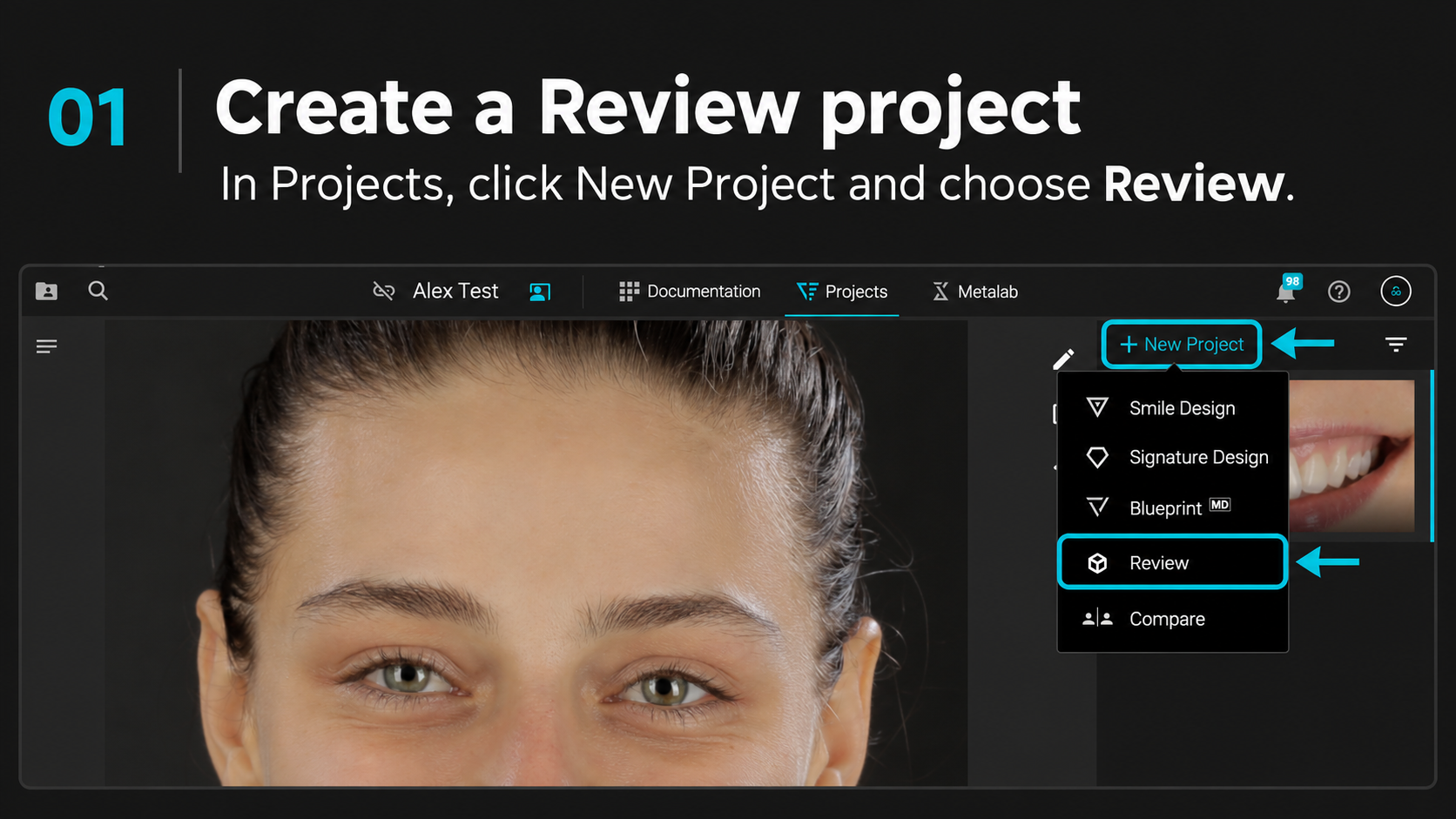
Create a Review project. In your case, go to Projects → New Project → Review.
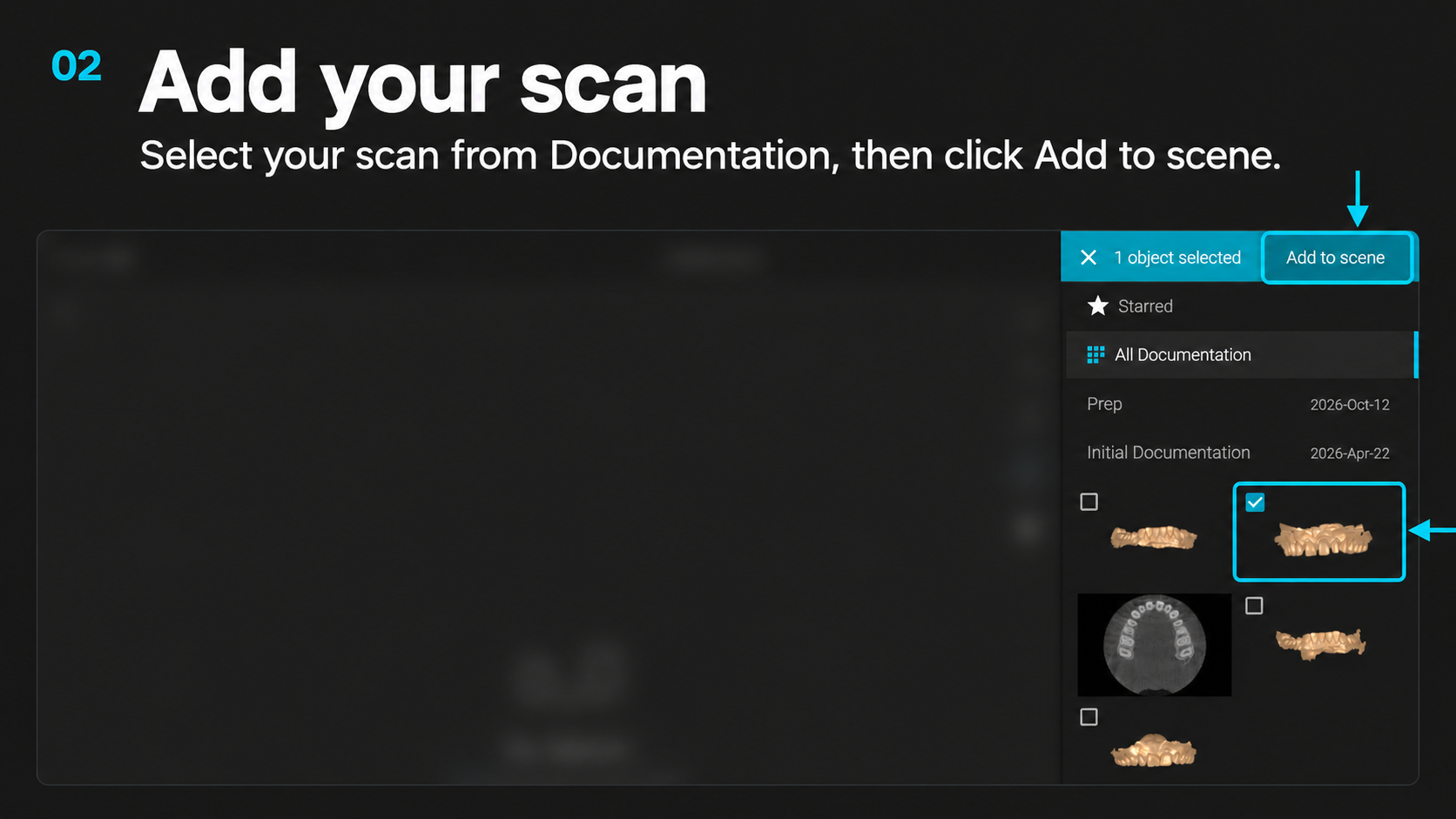
Add your scan. Select the scan from your case documentation, then click Add to scene.
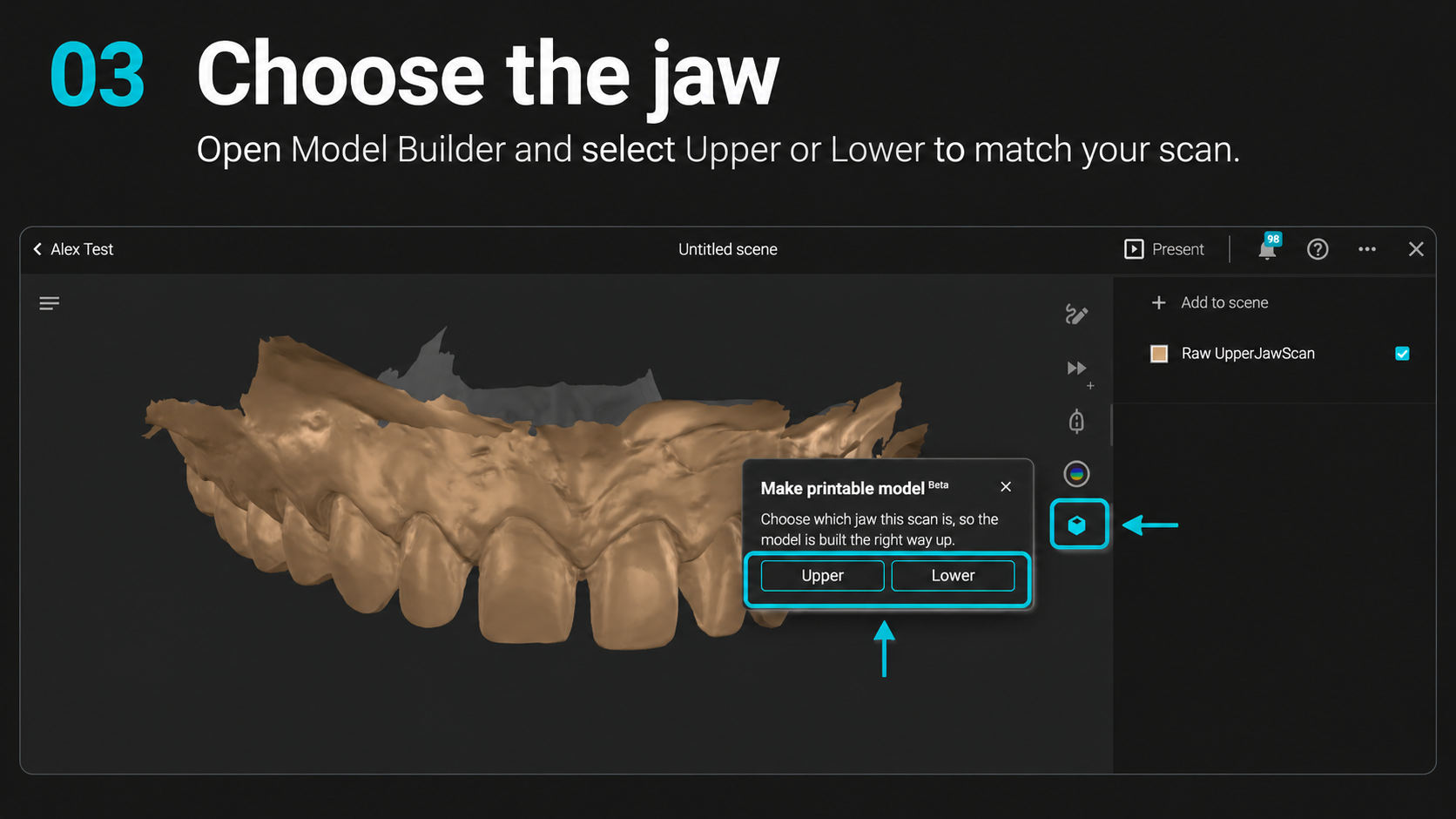
Open Model Builder using the cube icon, select your scan, and choose Upper or Lower.
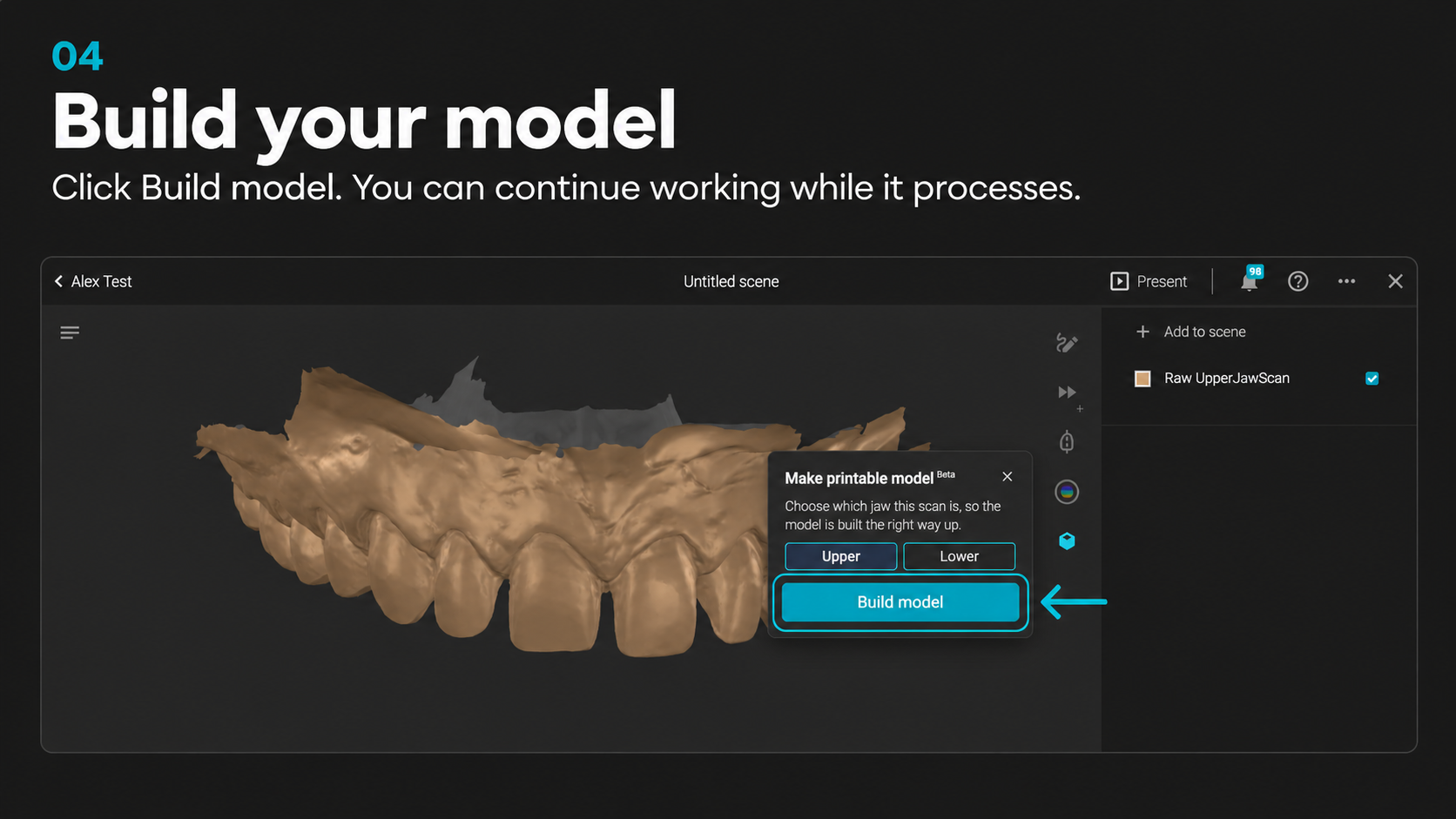
Build your model. Click Build model. You can continue working in Smilecloud while it processes.
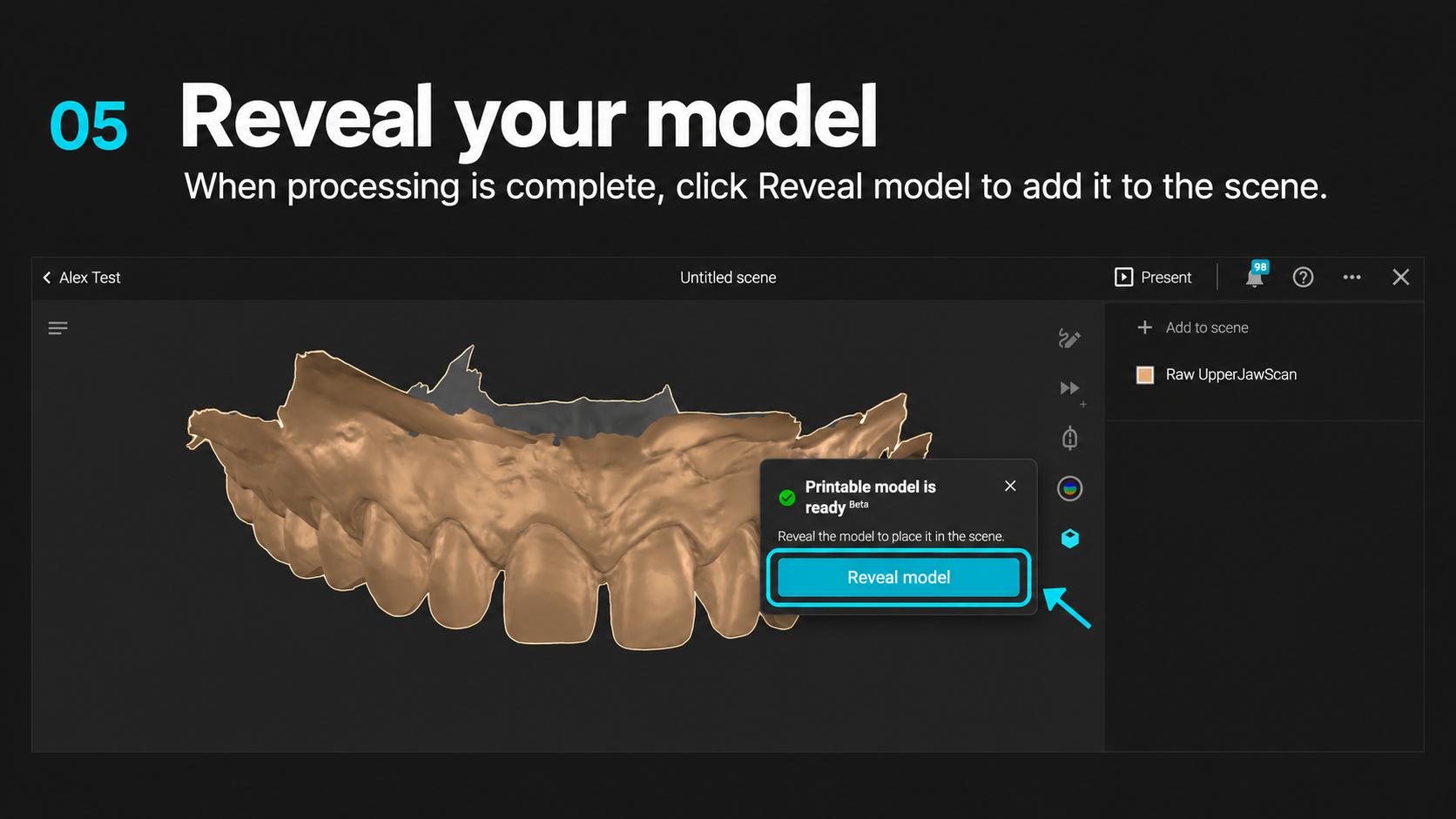
Reveal your model. When processing is complete, click Reveal model to add it to the scene.
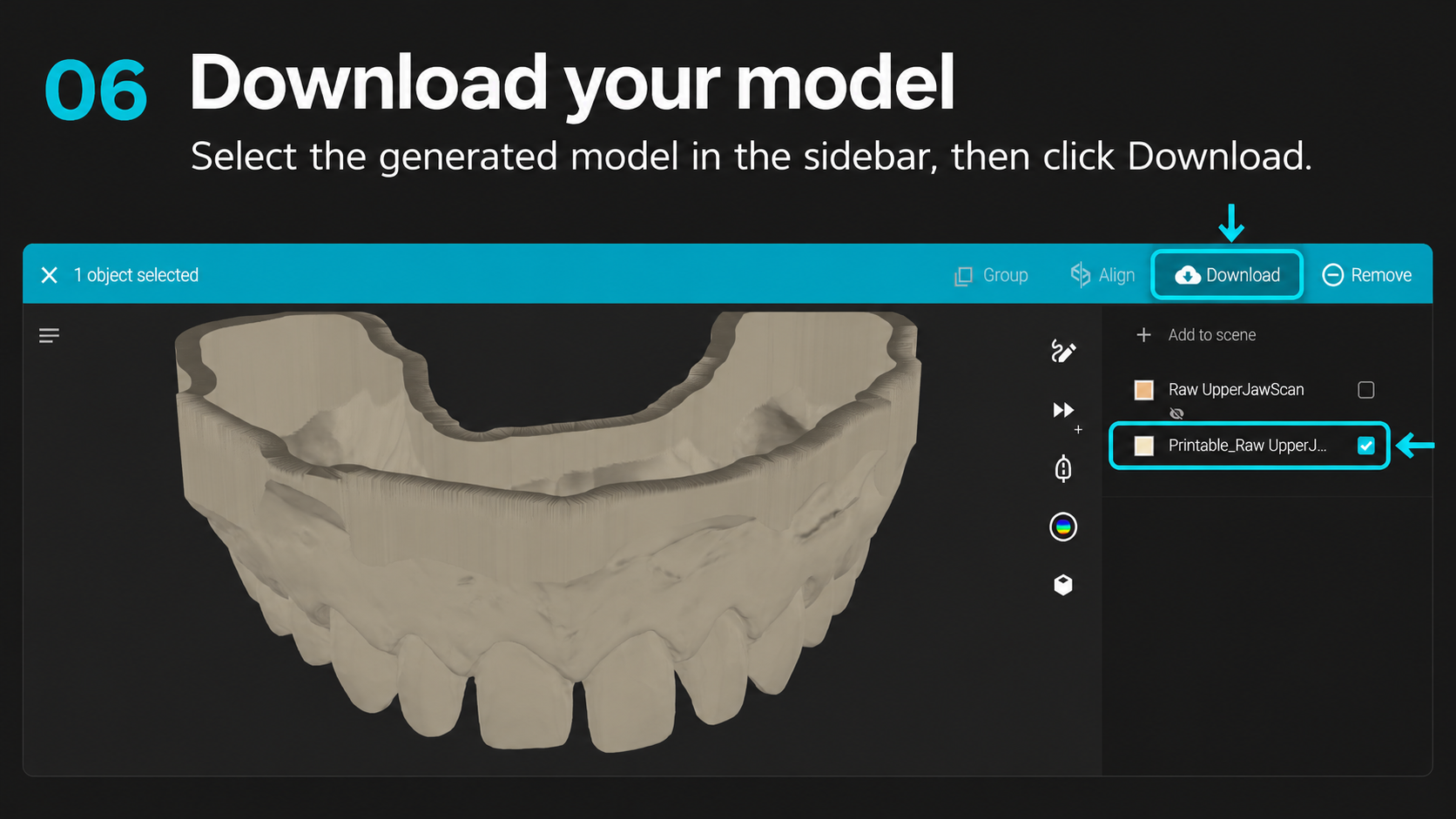
Download your model. Select the generated model in the sidebar, then click Download.
Before building: Check for self-intersecting surfaces, flipped surface normals and holes near the scan margins.
Best practices before you build
❌Do not use scans with self-intersecting surfaces, especially on their margins
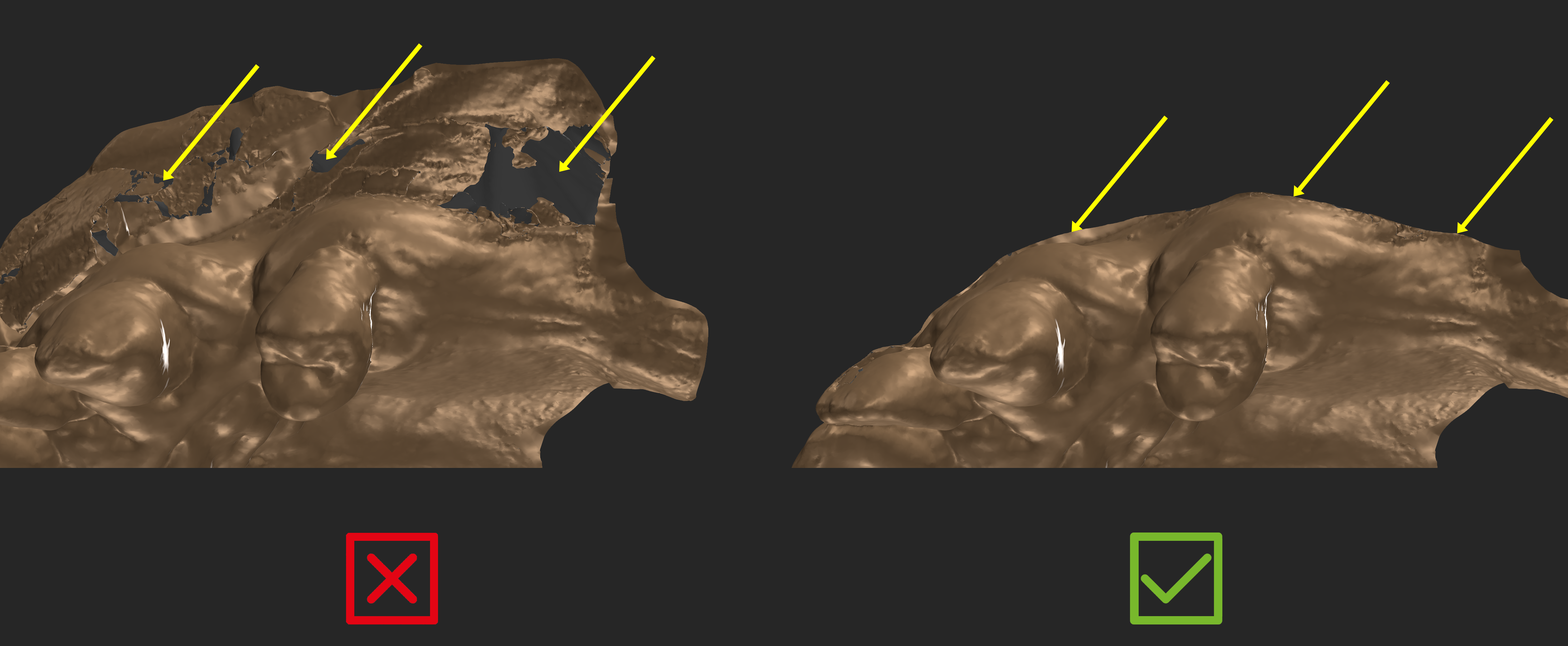
❌ Avoid having holes near the scan margins without sufficient polygons around it.
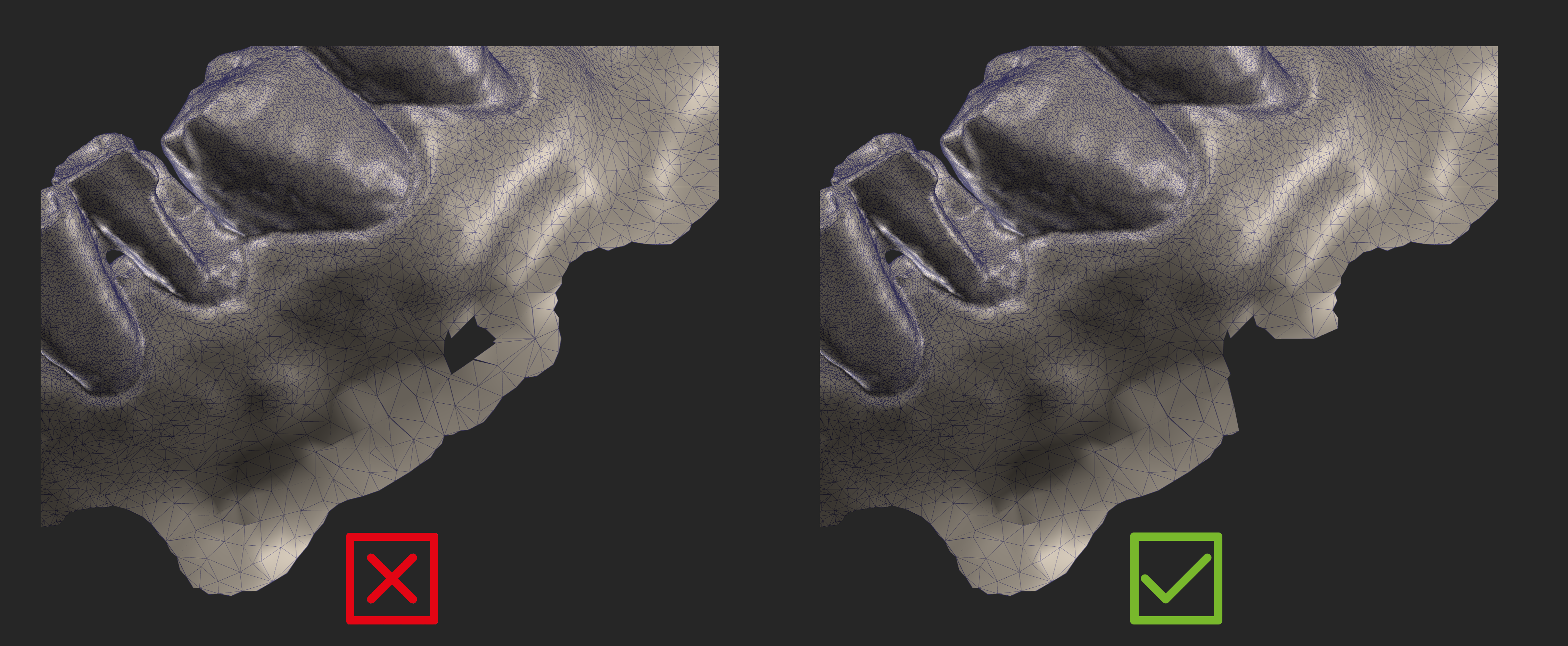
❌Do not use scans with flipped surface normals.
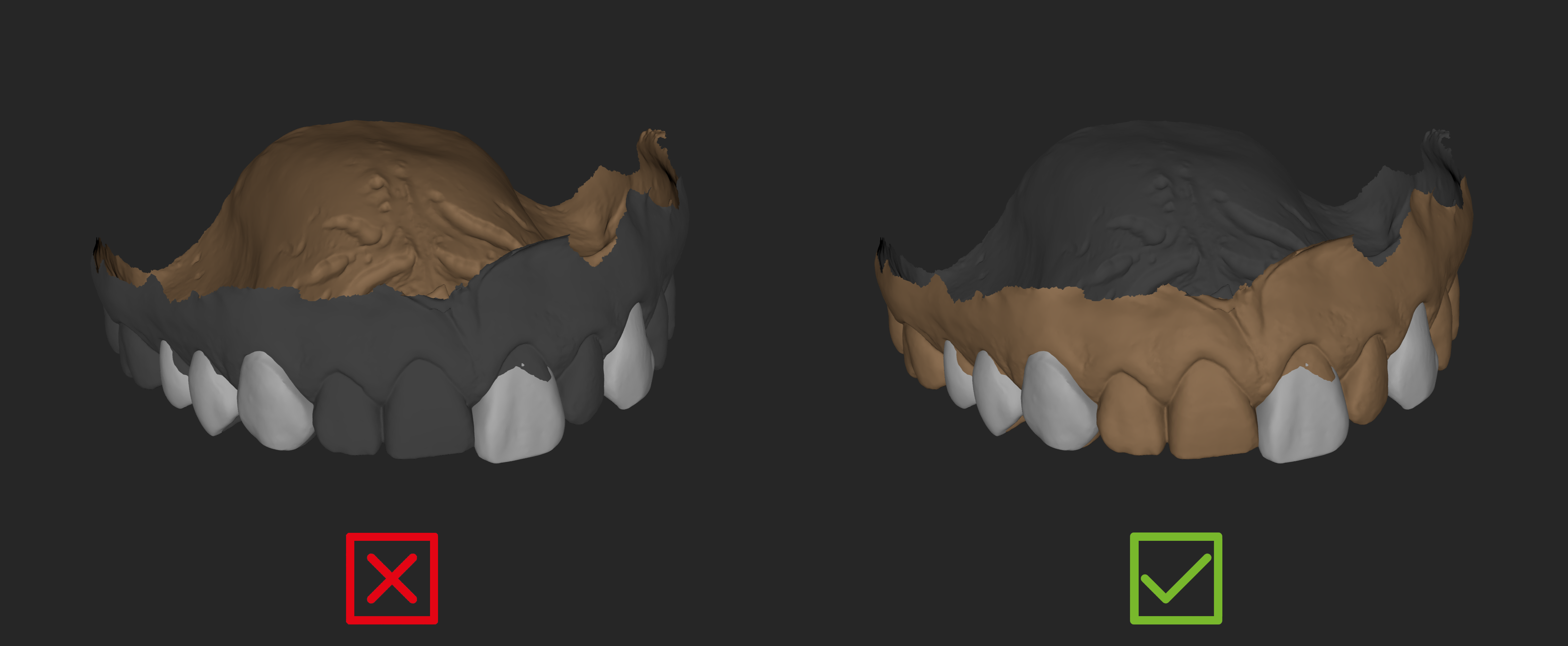
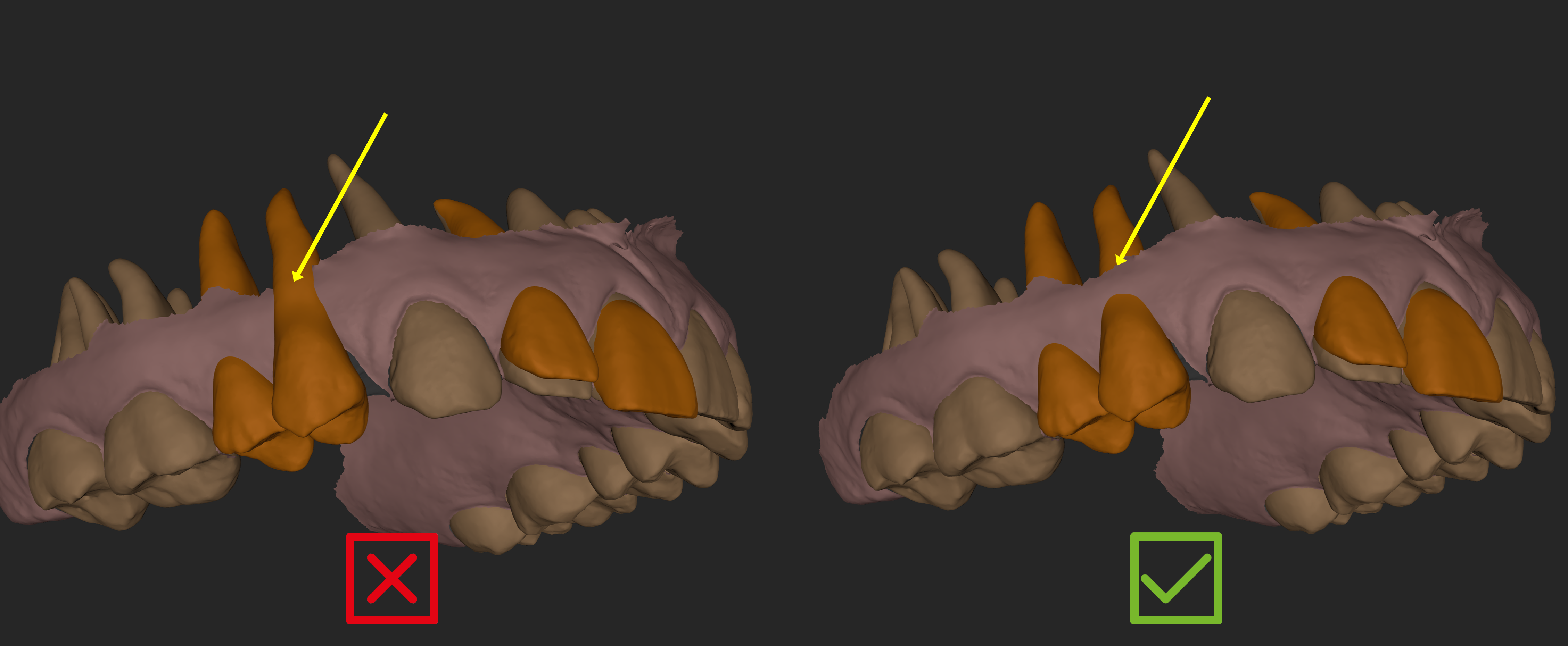
❌Do not position design/align teeth without contact on the unsegmented scan
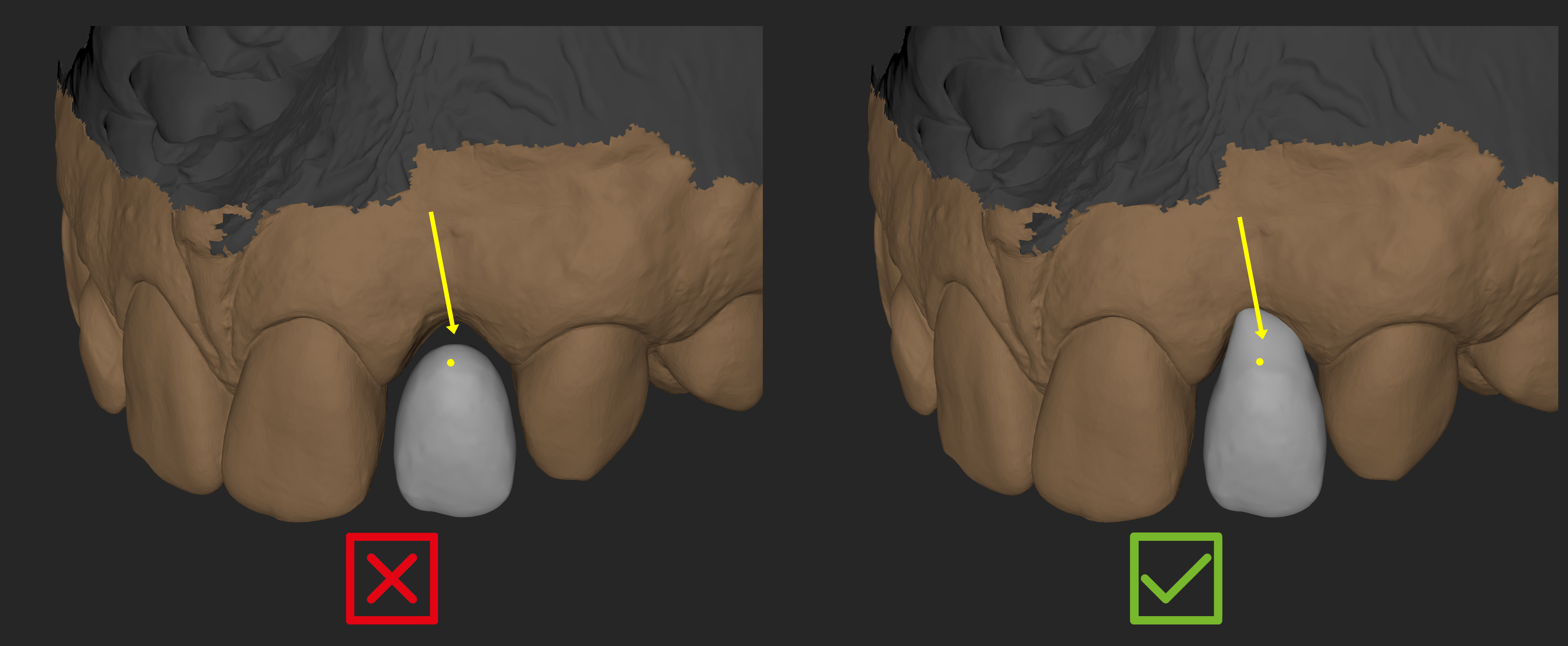
❌Do not position design/align teeth on the very margin of the unsegmented scan
✅ Smooth out any self intersecting surface that you might create during sculpting in blueprint.
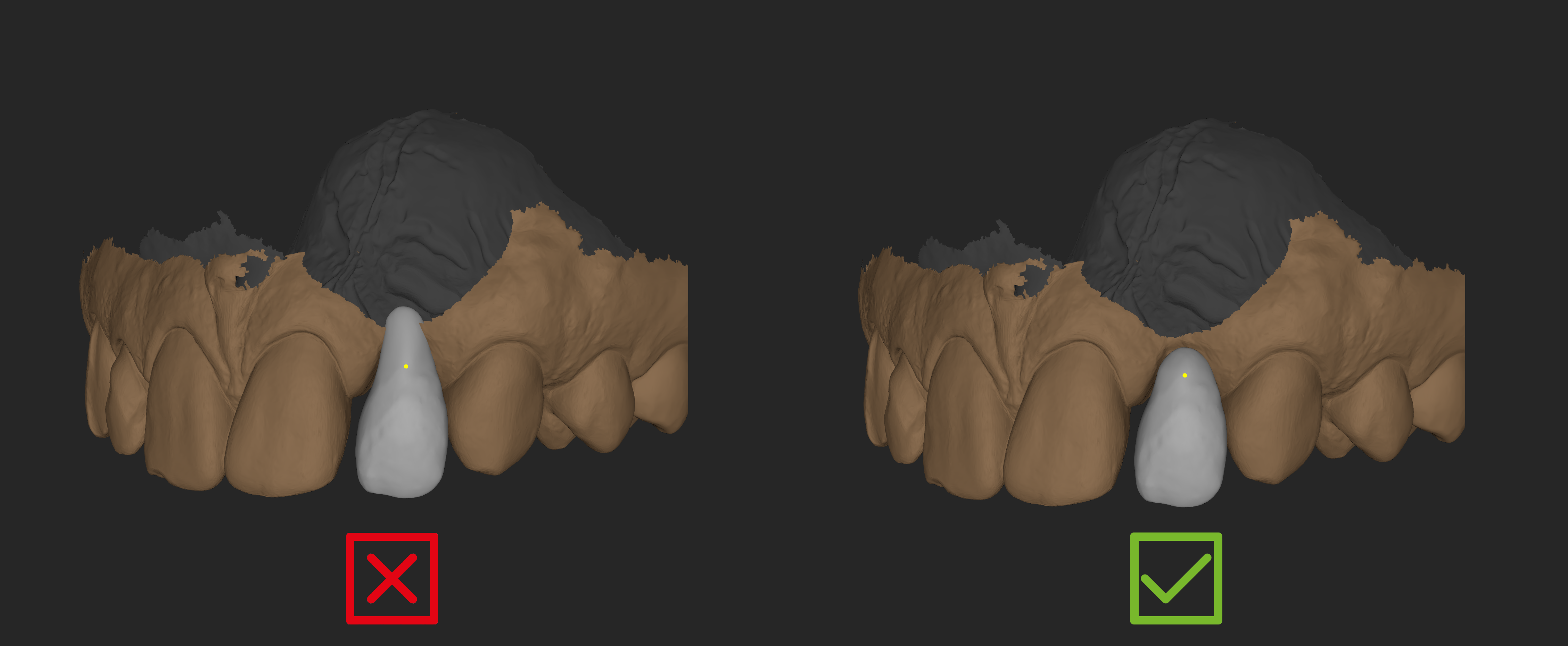
❌ Do not use scans with flipped surface normals.
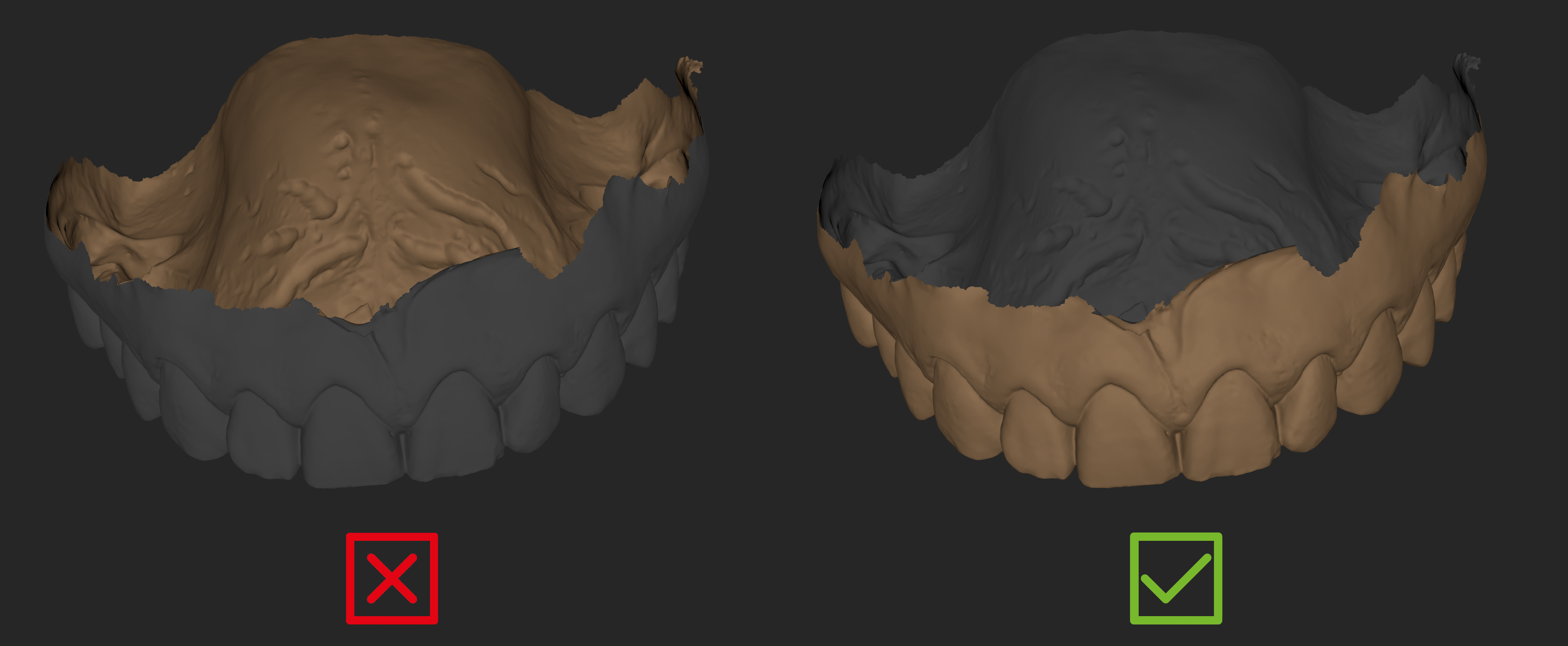
❌ Do not position design/align teeth on the very margin of the scanned gingiva mesh.
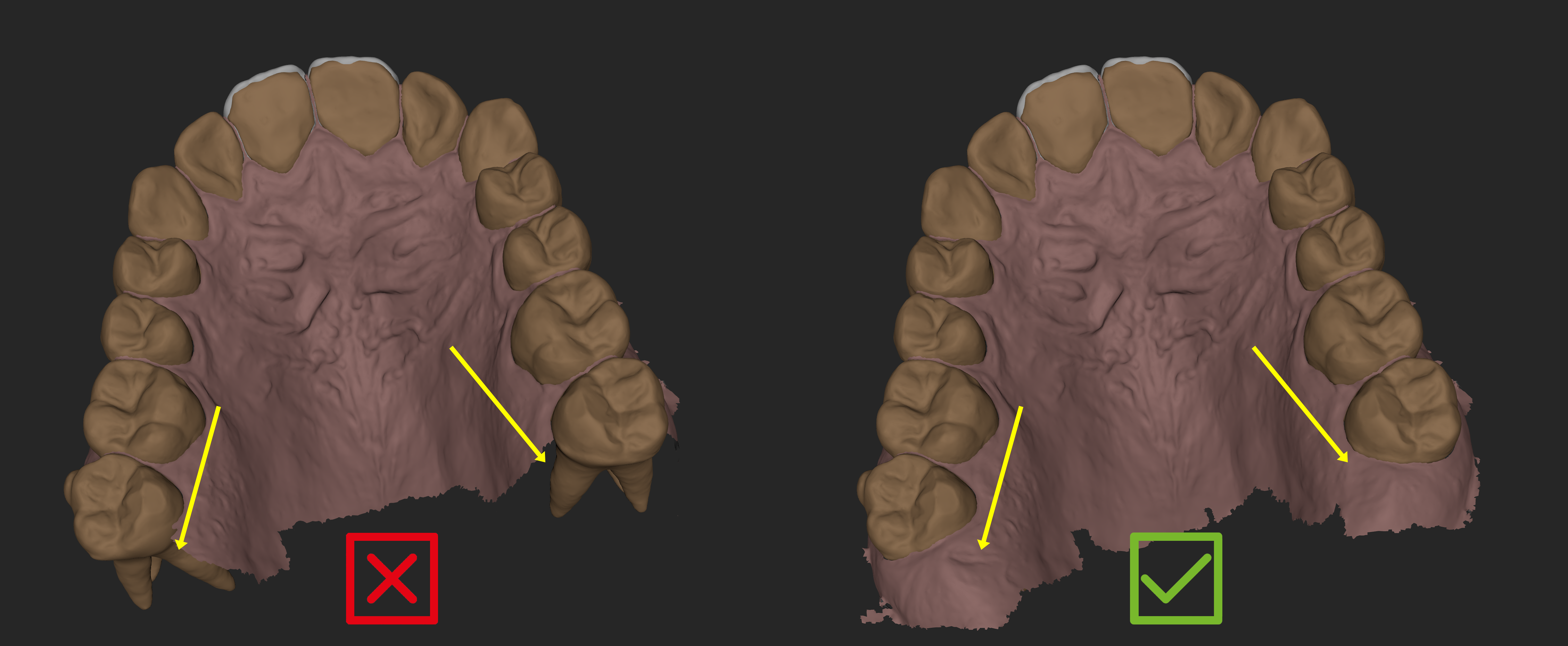
❌ Avoid this edge case if your scan does not have enough gingiva in the posterior area.
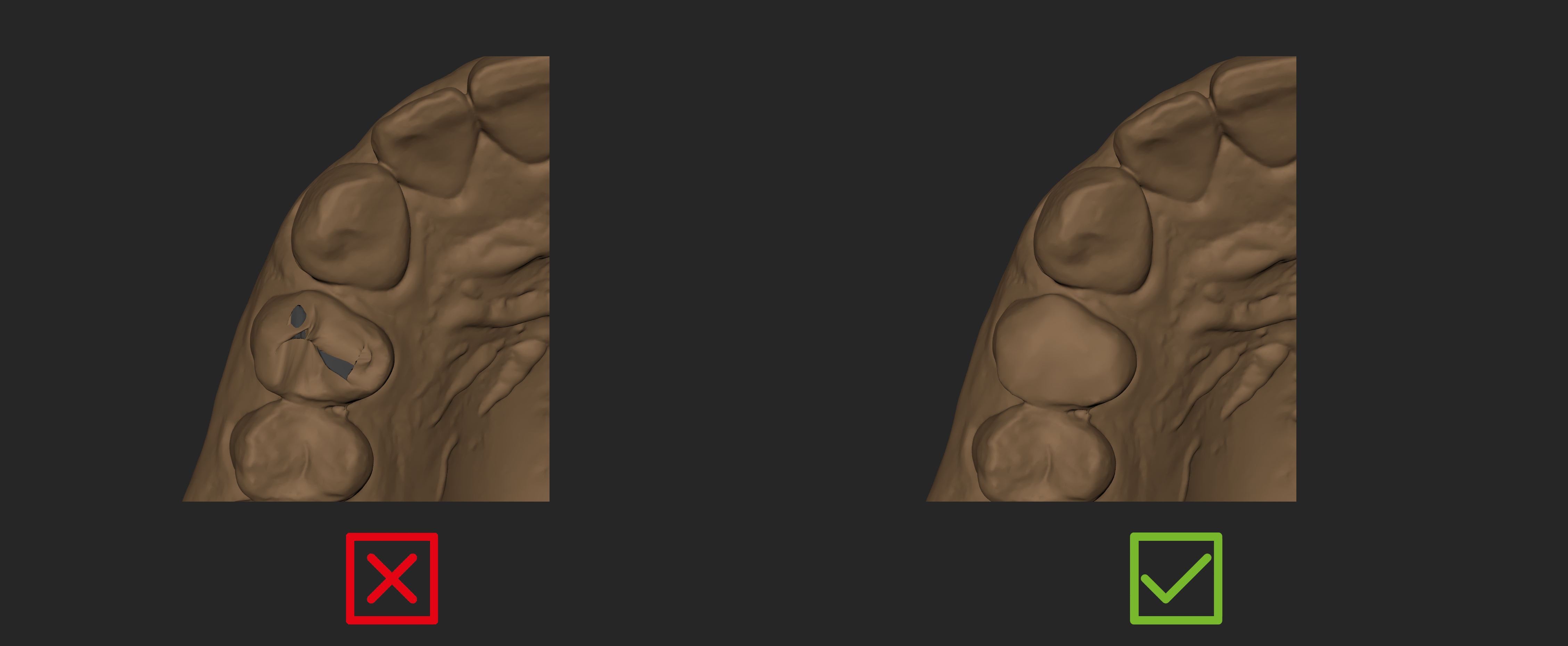
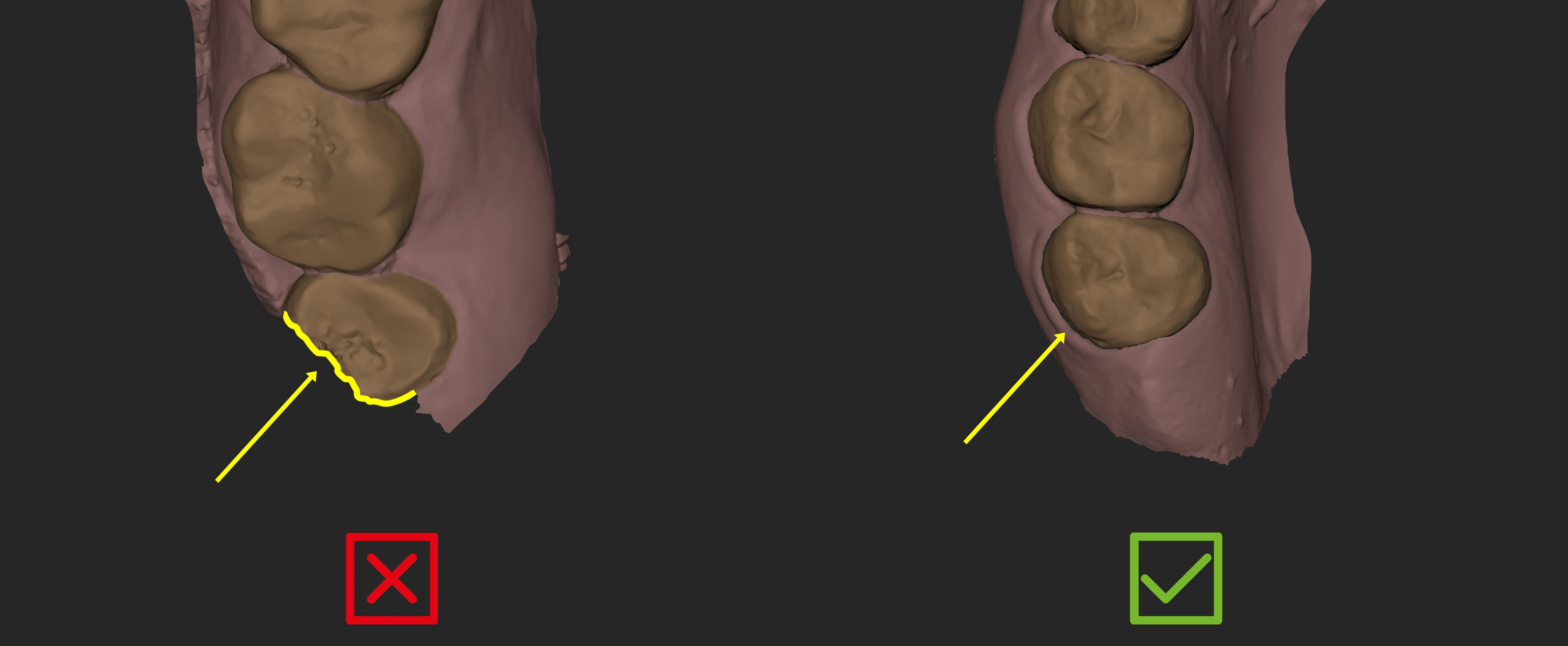
❌ Avoid this edge case if your scan ends with an incomplete/small segmented tooth or you can try to eliminate it from the model builder selection.
Choose your workflow
Build from an unsegmented scan
Use this option when you want a model of the existing intraoral situation—for example, a preparation scan for support.
Model Builder adds thickness and creates a base without changing the original scan surface. Any edits to the scan must be completed before building.
Follow the unsegmented scan guide →
Build from segmented Blueprint elements
Use this option for All-on-X cases, projects with realigned teeth, or cases with fused roots in Blueprint.
You can choose which initial, designed or aligned teeth to include alongside the scanned gingiva. This gives you more control over the model’s contents, but requires careful preparation so the selected teeth can join correctly to the gingiva.
Follow the segmented Blueprint guide →
Combine an unsegmented scan with Blueprint teeth
Use this option for motivational mock-ups or additive composite designs. It can also offer an alternative when a segmented scan does not meet the requirements for model building.
This workflow combines an unsegmented scan with designed or aligned teeth from Blueprint. If the design requires reduction of the original scan, you must make those changes manually before building, using Blueprint’s Brush tools on an additional scan or external software.
Follow the combined workflow guide →